How to Transfer a Starlink Mini to a New Account
The Starlink Mini writeup covers picking the right plan and mounting the dish on a T-top. This one covers a question that comes up just as often once the boat’s actually running it: how to move that same Mini to a different account. Selling the boat with the dish still mounted, switching a personal account over to a business account for a charter operation, or just consolidating two accounts into one login are all the same underlying process — Starlink calls it a hardware transfer, and it’s a real feature in the account dashboard, not something you have to call support for in most cases.
The rules before you start
Starlink puts real eligibility requirements on a transfer, and it’s worth checking these before you promise a buyer or a new account holder anything:
- You can’t transfer immediately after buying. Transfers aren’t allowed until 120 days after purchase or 90 days after activation, whichever comes first.
- Service has to have stayed active for 90 days from activation. A dish that’s been sitting deactivated doesn’t necessarily clear this on its own.
- No outstanding balance on the account. Settle any past-due amount first or the transfer won’t go through.
- Returns in progress block a transfer once the carrier has scanned your return label — if you started a return and changed your mind, you can only still transfer the hardware if that scan hasn’t happened yet.
- Rental plans can’t transfer as-is. If the Mini is on a rental service line, you have to change the service plan first, which can mean a kit buyout or a change fee before a transfer is even possible.
If you bought the dish from an authorized retailer rather than directly from Starlink and you’re inside that 120-day window with legitimate transfer issues, Starlink support can sort it out if you have proof of purchase.
The actual transfer steps
This all happens in your account at starlink.com, not in the mobile app:
- Log into your account at starlink.com.
- Select the “Subscriptions” tab, then select the subscription the Mini is on.
- Click “Manage” in the Service Plan box, then “Cancel Service.” This feels backwards if you’re not planning to actually stop using it, but canceling the service line is a required step before the hardware itself can move.
- Under “Devices,” find the Starlink and click “Transfer,” then confirm the conditions. This step permanently removes the dish from your account — there’s no undo once you confirm it.
- Enter the new owner’s email to send them an activation link, or click “close” if you’re just clearing the hardware off your own account for now and will activate it elsewhere yourself.
- Factory reset the router before it changes hands. Don’t skip this — your saved WiFi network name and password, and anything tied to your account locally, stays on the hardware otherwise.
- Hand over the full kit, not just the dish — the new owner needs everything that shipped with it to get service running again.
- Share the Starlink identifier printed on the hardware. The new owner needs it to activate the kit on their own account.
Moving to a Starlink Business account
If the destination is a Business account rather than another person entirely — the common case for anyone formalizing a charter operation — the process is the same transfer above, plus one extra piece: place the new Business order at starlink.com/business using the same email address as the existing account, and Starlink’s system will recognize it and let you switch between the two accounts once you’re signed in. Complete the standard transfer steps first, then activate the device on the new Business account through the normal activation flow. Trying to activate before the transfer is finished just leaves the hardware in limbo between the two accounts.
The boat-specific gotchas
A few things trip up boat owners specifically that a residential customer moving a dish between houses never runs into:
The mount and power gear aren’t part of the transfer. Everything in the Mini install beyond the dish itself — the T-top mount, the 12V step-up adapter, the shorter power cable — is aftermarket hardware, not part of Starlink’s own kit. None of it needs to go with the transfer, and none of it affects eligibility. If you’re selling the boat with the dish still mounted, decide separately whether the mounting hardware goes with it or comes off with you.
A factory reset matters more on a boat that’s changing hands entirely. If you’re selling the whole boat, the new owner is inheriting more than a WiFi password — they’re inheriting whatever devices were still remembered on that network. Reset it clean.
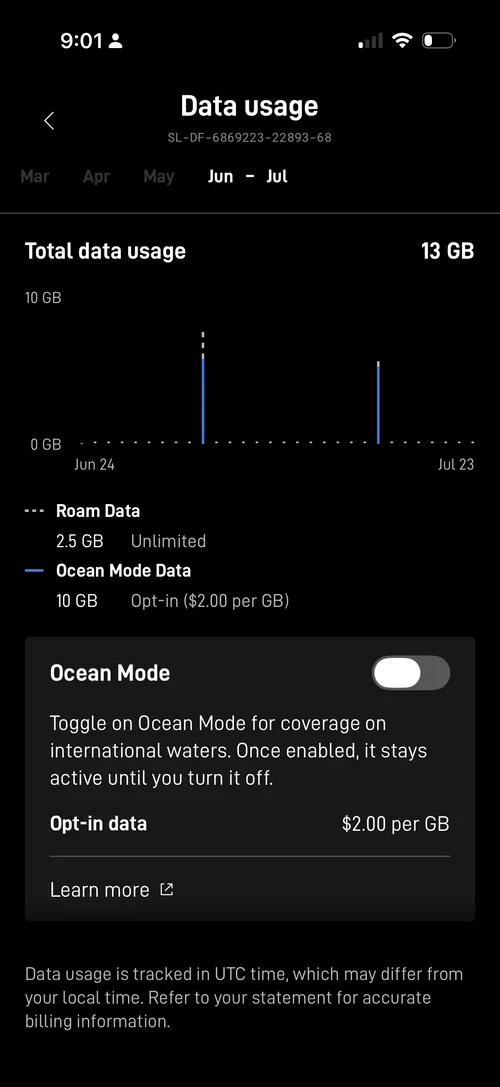
Roam plan billing doesn’t carry over. If the Mini’s been running on Roam Unlimited with the ocean data toggle, none of that plan history, billing, or ocean-data settings transfers with the hardware — the new owner sets up their own service plan from scratch once they activate it on their account, and should check current Ocean Mode pricing and the Personal Maritime plan before assuming Roam is still the right fit for how they’ll actually use the boat.
Warranty follows the hardware, not the account
Worth knowing whichever side of the transfer you’re on: the warranty is based on the original purchase date regardless of how many times the hardware has changed hands. Buying a used Mini from a boat sale doesn’t reset the warranty clock, and it doesn’t extend it either — check the actual purchase date and verify the kit’s condition before relying on remaining warranty coverage from a private sale.
Bottom line
The transfer itself is a same-day process once you’re past the eligibility window — cancel the service line, hit transfer, factory reset, hand off the kit and the identifier. The part that actually takes planning is the 120-day/90-day eligibility clock and making sure there’s no balance sitting on the account, since neither of those can be worked around from the transfer screen itself.
This article may contain affiliate links. If you buy through them, we may earn a small commission at no extra cost to you. Learn more.